Build a topology
Draw it or type it. The canvas and the YAML are two views of the same file, and every change shows up in both.
name: fabric

topology:
  defaults:
    kind: nokia_srlinux
    image: ghcr.io/nokia/srlinux:latest

  nodes:
    spine1:
      type: ixrd3
    spine2:
      type: ixrd3
    leaf1:
      type: ixrd2
    leaf2:
      type: ixrd2
    leaf3:
      type: ixrd2
    client1:
      kind: linux
      image: ghcr.io/srl-labs/network-multitool:latest
    client2:
      kind: linux
      image: ghcr.io/srl-labs/network-multitool:latest
    client3:
      kind: linux
      image: ghcr.io/srl-labs/network-multitool:latest

  links:
    - endpoints: [spine1:e1-1, leaf1:e1-49]
    - endpoints: [spine1:e1-2, leaf2:e1-49]
    - endpoints: [spine1:e1-3, leaf3:e1-49]
    - endpoints: [spine2:e1-1, leaf1:e1-50]
    - endpoints: [spine2:e1-2, leaf2:e1-50]
    - endpoints: [spine2:e1-3, leaf3:e1-50]
    - endpoints: [leaf1:e1-1, client1:eth1]
    - endpoints: [leaf2:e1-1, client2:eth1]
    - endpoints: [leaf3:e1-1, client3:eth1]
name: fabric

topology:
  defaults:
    kind: nokia_srlinux
    image: ghcr.io/nokia/srlinux:latest

  nodes:
    spine1:
      type: ixrd3
    spine2:
      type: ixrd3
    leaf1:
      type: ixrd2
    leaf2:
      type: ixrd2
    leaf3:
      type: ixrd2
    client1:
      kind: linux
      image: ghcr.io/srl-labs/network-multitool:latest
    client2:
      kind: linux
      image: ghcr.io/srl-labs/network-multitool:latest
    client3:
      kind: linux
      image: ghcr.io/srl-labs/network-multitool:latest

  links:
    - endpoints: [spine1:e1-1, leaf1:e1-49]
    - endpoints: [spine1:e1-2, leaf2:e1-49]
    - endpoints: [spine1:e1-3, leaf3:e1-49]
    - endpoints: [spine2:e1-1, leaf1:e1-50]
    - endpoints: [spine2:e1-2, leaf2:e1-50]
    - endpoints: [spine2:e1-3, leaf3:e1-50]
    - endpoints: [leaf1:e1-1, client1:eth1]
    - endpoints: [leaf2:e1-1, client2:eth1]
- endpoints: [leaf3:e1-1, client3:eth1]Unlock the canvas first: select the lock in the toolbar. A new, empty lab opens unlocked.
Generate a Clos fabric
Generate Clos Topology builds a leaf–spine fabric with containerlab generate and opens it. Find it on a lab host in the explorer, next to New Topology File. The browser sandbox builds the same file itself and saves it in your browser.
- Tiers: how many nodes, which kind and type. Every node links to every node of the next tier.
- Images: one per kind, and an optional license file.
- Names and management network: node and group prefixes, the network and its subnets. Empty fields keep containerlab's defaults.
The dialog shows the resulting containerlab generate command and how many nodes and links the fabric has.
Add nodes
- Drag a template from the Palette onto the canvas.
- Shift + click an empty spot to drop your default template there.
- Copy and paste existing nodes with Ctrl+C and Ctrl+V, or duplicate with Ctrl+D.
Names count up from the template's base name: srl1, srl2, srl3. To make your own templates, see Node templates.
Connect interfaces
Shift + click the first node, then click the second. The editor picks the next free interface on each side, following the node kind's naming, for example e1-1 on SR Linux and eth1 on Linux.
Double-click a link to change its interfaces or properties in the Link Editor. On the Extended tab, Type switches a link between veth and veth-stitch. A veth-stitch link joins the two nodes through veth pairs on the host, so you can capture and impair it there even when a node can't be impaired itself. containerlab already deploys brief links to SR-SIM nodes this way.
Connect many at once
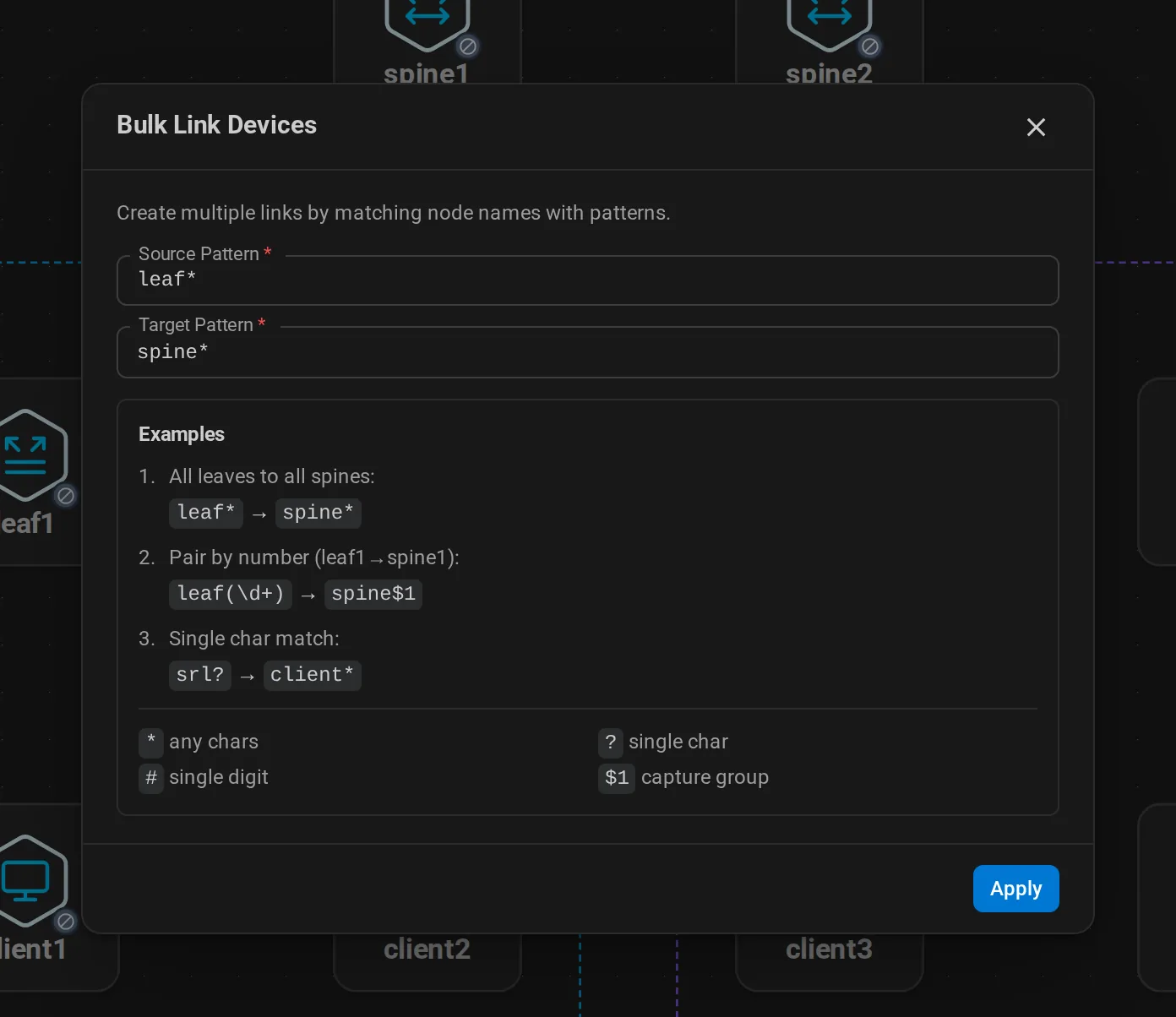
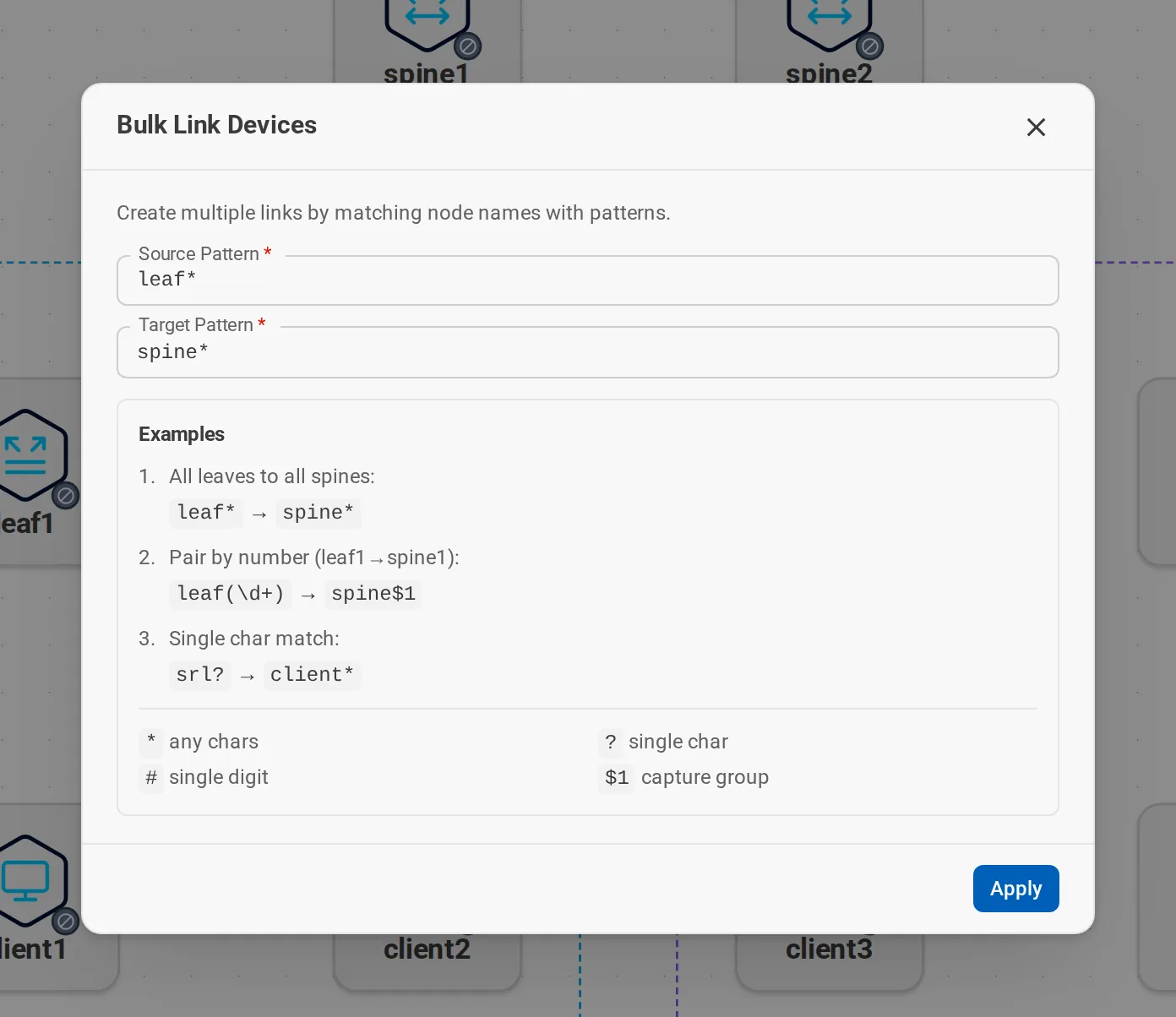
Bulk Link Devices connects every node matching a Source Pattern to every node matching a Target Pattern.
| Source | Target | Result |
|---|---|---|
leaf* |
spine* |
A full mesh between leaves and spines |
srl? |
client |
srl1 to srl9 each connect to client |
leaf(\d+) |
server$1 |
leaf1–server1, leaf2–server2, … |
Edit node properties
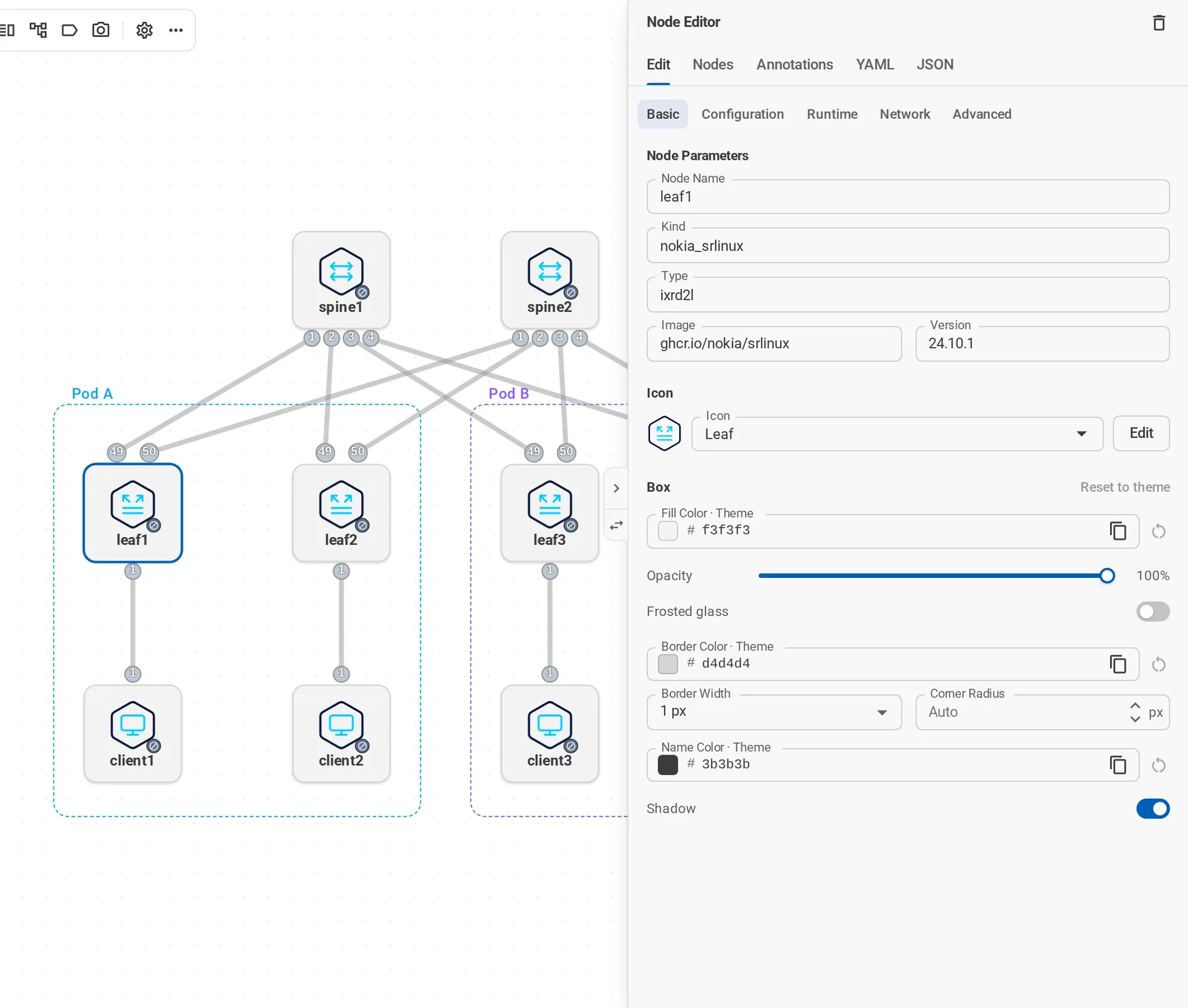
Double-click a node to open the Node Editor: kind, type, image, startup config, binds, environment, ports, and the rest of what containerlab supports.
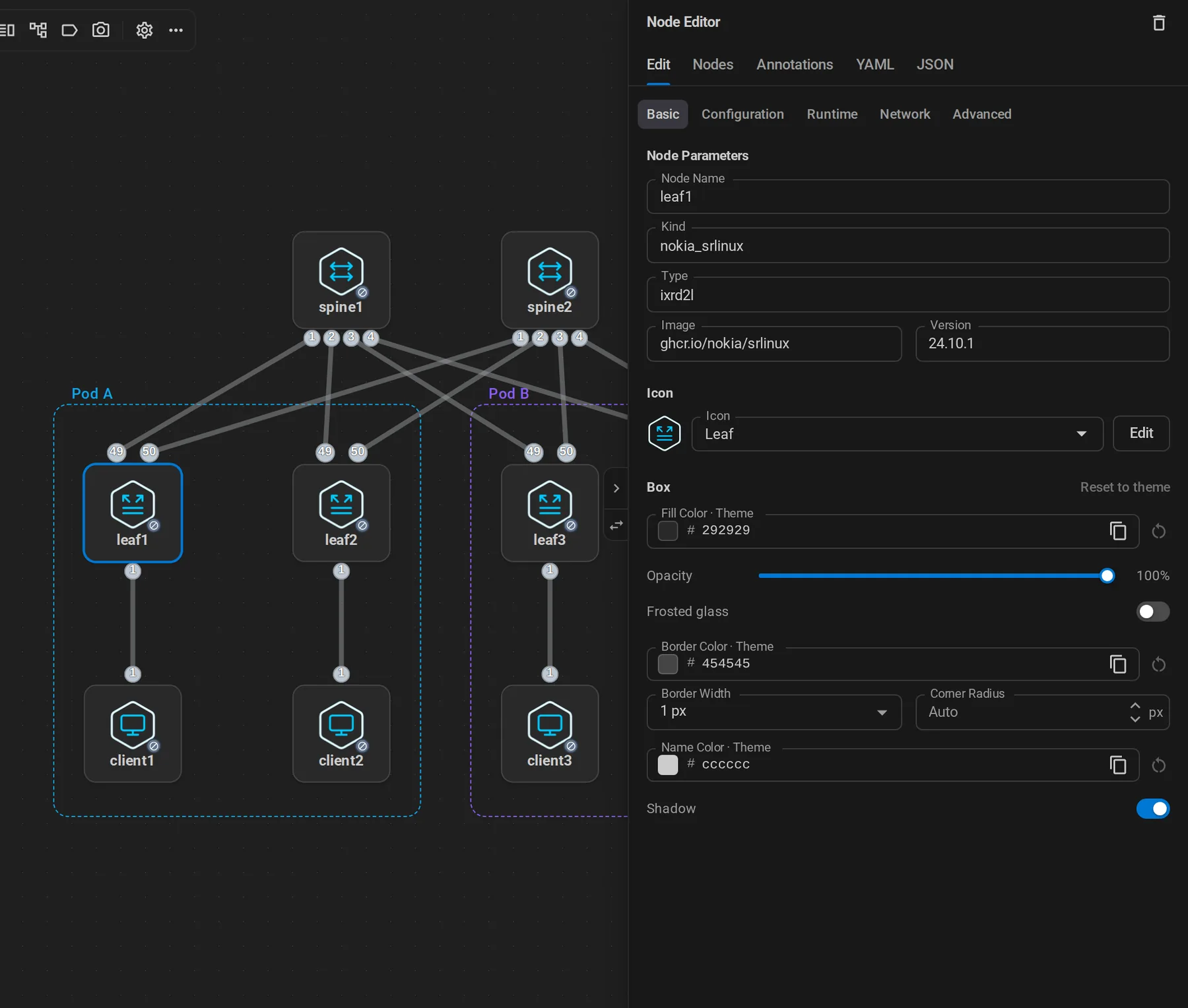
A value the node gets from defaults, its kind, or its group shows where it comes from under the field, for example From kind nokia_srlinux. Type a new value to override it for this node, or clear the field to go back to the inherited one. Inherited environment variables, labels, binds, and exec commands are locked: change them where they are set. Settings Group picks the containerlab group the node inherits from. It is not the same as a group drawn on the canvas.
Variables
containerlab replaces environment variables such as ${SRL_IMAGE:=ghcr.io/nokia/srlinux} anywhere in the file, and magic variables such as __clabNodeDir__ in startup config paths, binds, exec commands, stage commands, and kind-specific settings. A field that uses them shows what it resolves to under the field, for example Resolves to: /home/alice/labs/clab-dc/srl1/startup.cfg.
Type __ in one of the fields that take magic variables to pick __clabNodeName__, __clabNodeDir__, __clabDir__, or __clabLabName__, with the value each has for the node.
Environment values come from the machine that runs containerlab: your own in VS Code and in the desktop app's local mode. A lab host's environment is not visible to the app, so there the preview shows the default after := or :- and says so. Through sudo, containerlab gets a different environment, so the local preview also shows defaults only.
A lab name with __gitBranch__ or __gitHash__ runs under the branch and short commit of the Git repository in the topology's folder, none without one. The editor, the explorer, and the running lab views use that expanded name.
Topology templates
A *.clab.gotmpl file is a topology template: Go template syntax that containerlab renders with the variables in <name>.clab_vars.yml and the snippets in clab_templates/. The explorer lists templates with the other topologies, and deploy, redeploy, and destroy work on them like on any topology.
Only containerlab can turn a template into a topology, so the canvas does not edit it:
- In the desktop and web apps, opening a template shows its text next to a read-only Rendered topology. Enter another variables file to try it; the preview renders again after you save.
- In VS Code, the template opens as text. Open TopoViewer on a template shows the rendered topology in a read-only tab instead.
Rendering runs containerlab deploy --dry-run --export-rendered on your machine, which needs containerlab 0.78 or later and deploys nothing. Lab hosts need a clab-api-server with template support; older servers do not list templates and the preview says the server cannot render them. In the desktop and web apps, a template whose name is not literal is listed and deployed under its file name.
Share settings between nodes
Lab Settings → Defaults & Groups lists the lab's defaults, kinds, and groups, with the number of nodes each one reaches. Edit one to open the same tabs as the Node Editor, add a kind or a group, or remove one. These edits save right away.
containerlab applies them in order: defaults, then the node's kind, then its group, then the node itself. Environment variables, labels, binds, exec commands, and similar lists add up across levels; other values come from the most specific level that sets them.
Lab-wide settings
Lab Settings → Management sets the management network: its name, driver, subnets, and options. Add networks to give nodes separate ones; the first is the default.
Tailscale joins a management network to a Tailscale tailnet, on one network per lab:
- Sidecar per node adds every node as a device of its own. It needs an auth key; write it as an environment variable such as
${TS_AUTHKEY}to keep it out of the file. - Lab proxy adds the lab as one device that you log in to with SSO. It forwards the node ports set to Tailscale in the Node Editor's Port Mappings, written as
8022:22/ts.
While the lab runs on a clab-api-server, the tab lists its Tailscale devices, their tailnet addresses and forwarded ports, and the login link the proxy waits on. Labs on the local containerlab don't show this list.
Lab Settings → Certificates sets the certificate authority that signs node certificates: the key size and validity of the CA containerlab generates, or the certificate and key files of your own CA.
Kind-specific settings
Some kinds take settings of their own. The Kind tab of the Node Editor shows the ones the node's kind accepts, for example:
| Kind | Settings |
|---|---|
nokia_srlinux |
Custom prompt, EDA gRPC server, line cards (components) |
nokia_sros, nokia_srsim |
Config mode, component config generation |
cisco_iol |
PID offset, management interface, bootstrap config |
arista_ceos |
Copy to flash |
frr, frrouting |
Daemons |
k8s-kind |
Kubeconfig path, wait time |
nvidia_cumulusvx |
Port count, breakouts |
The fields come from the containerlab schema, so new kinds and settings appear once the app ships the newer schema. Kinds without such settings have no Kind tab. If you change a node's kind, settings the new kind doesn't accept are removed, since containerlab won't deploy the node with them.
nokia_sros and nokia_srsim nodes have a Components tab for cards, MDAs, XIOMs, and the SFM. For nokia_sros, each card can also set the vCPUs, RAM, and NICs of its VM.
For nokia_srsim, the tab draws the chassis you picked with its real slots and offers only the hardware that chassis takes, from the list SR-SIM ships in its images. Click an empty slot to install a card, or Add starter hardware for a first build that deploys. Each card's type, copy and remove controls sit on its row, and the arrow opens its MDAs and XIOMs right below it. To move a card, drag it by its handle to another slot, or pick the slot from its number; a card already there swaps places with it. Anything that doesn't fit, for example after you change the chassis, is marked on its slot, and Fit to fixes it in one go. That includes slot limits the list doesn't carry, taken from the SR OS interface guide: an XIOM holds two MDAs, and an XCM on SR-2s, SR-7s, or SR-14s has one or two slots that each take an MDA or an XIOM. You can still type a type that isn't listed: containerlab only warns about it at deploy. The list comes with the app, so a newer image can offer hardware it doesn't know yet.
The tab follows the topology file. Edits made in the file or the YAML tab show up while it is open, unless you have unsaved changes there. Components and an SFM set on a kind or group show where they come from, and editing them makes the list the node's own. NOKIA_SROS_CHASSIS in env picks the chassis, as it does at deploy, and the tab names any NOKIA_SROS_* hardware variable that wins over it.
In Defaults & Groups, a section without a kind shows every kind-specific setting and the kinds it applies to.
Other settings
The Other tab of the Node Editor holds the node settings no other tab covers: hostname, privileged, link-apply-mode, cgroupns-mode, cgroup-parent, pid-mode, volumes, security-opts, tmpfs, and config.vars, the variables of startup-config templates. These fields also come from the containerlab schema, so node settings added upstream show up here once the app ships the newer schema.
Variable values are YAML: 65001 is a number, [2, 4] a list, and "65001" a string. Volumes, security options, tmpfs mounts, and variables add up across defaults, kinds, and groups, so the node writes only the entries it adds. Privileged set to Disabled is written as privileged: false, since most kinds run privileged by default.
Set the boot order
The Stages tab of the Node Editor sets containerlab stages. Under each stage (Create, Create Links, Configure, Healthy, Exit):
- Wait for holds the stage back until another node has finished a stage, for example: create
leaf1only afterspine1is healthy. - Command runs a command when the node enters or leaves the stage, in the container or on the host.
Entries from defaults, kinds, or groups are listed with their source and can't be edited here; containerlab adds them to the node's own. The tab flags a node name that doesn't exist and nodes that wait for each other in a loop, since containerlab won't deploy that.
To see the order on the canvas, open the Links menu and choose Show Wait-for Dependencies. Dashed arrows point from the node that goes first to the node that waits.
Edit the YAML
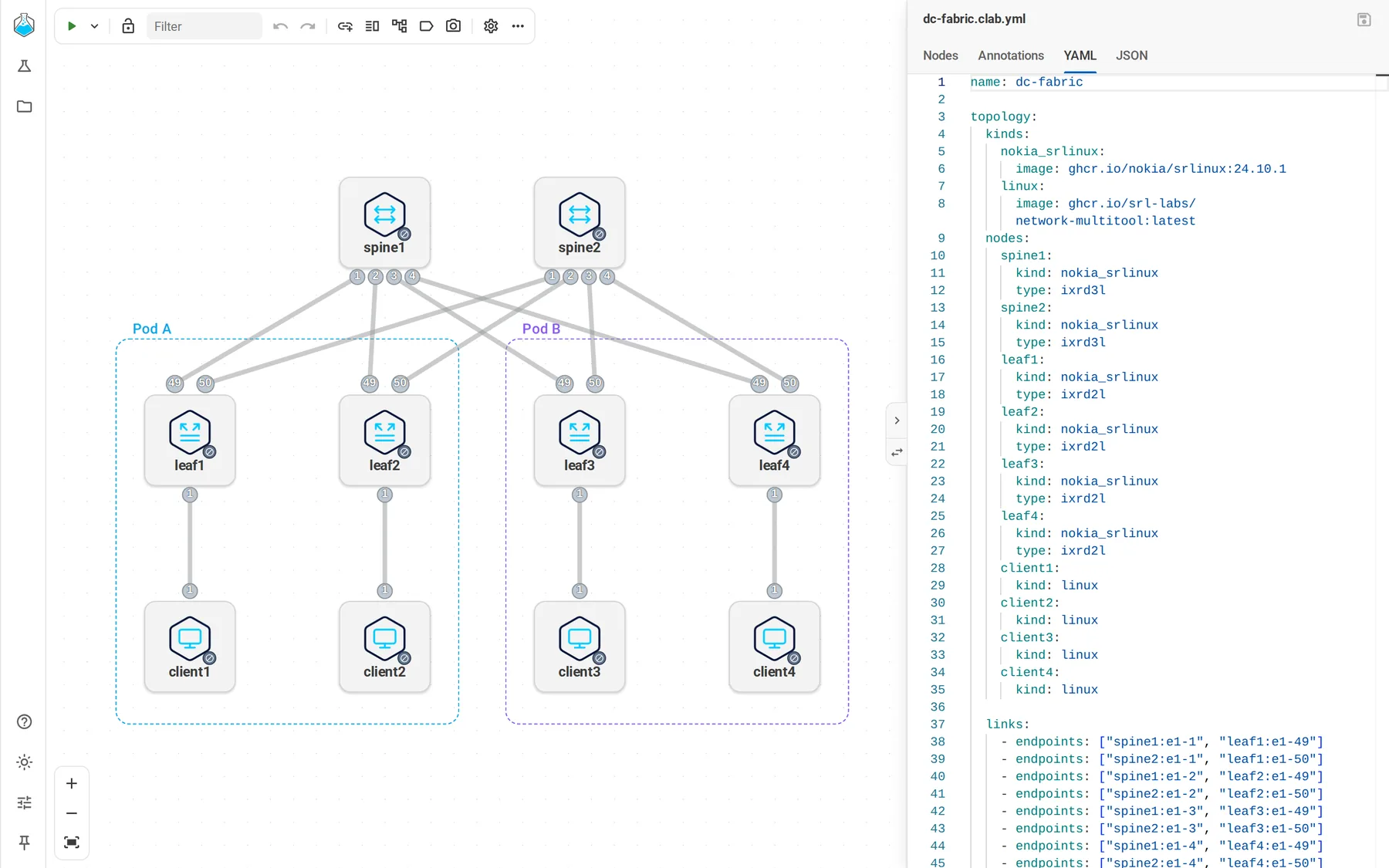
Toggle YAML Split View opens the file in a panel next to the canvas, on its YAML tab. The editor completes and checks containerlab keys as you type, and changes on either side show up on the other.
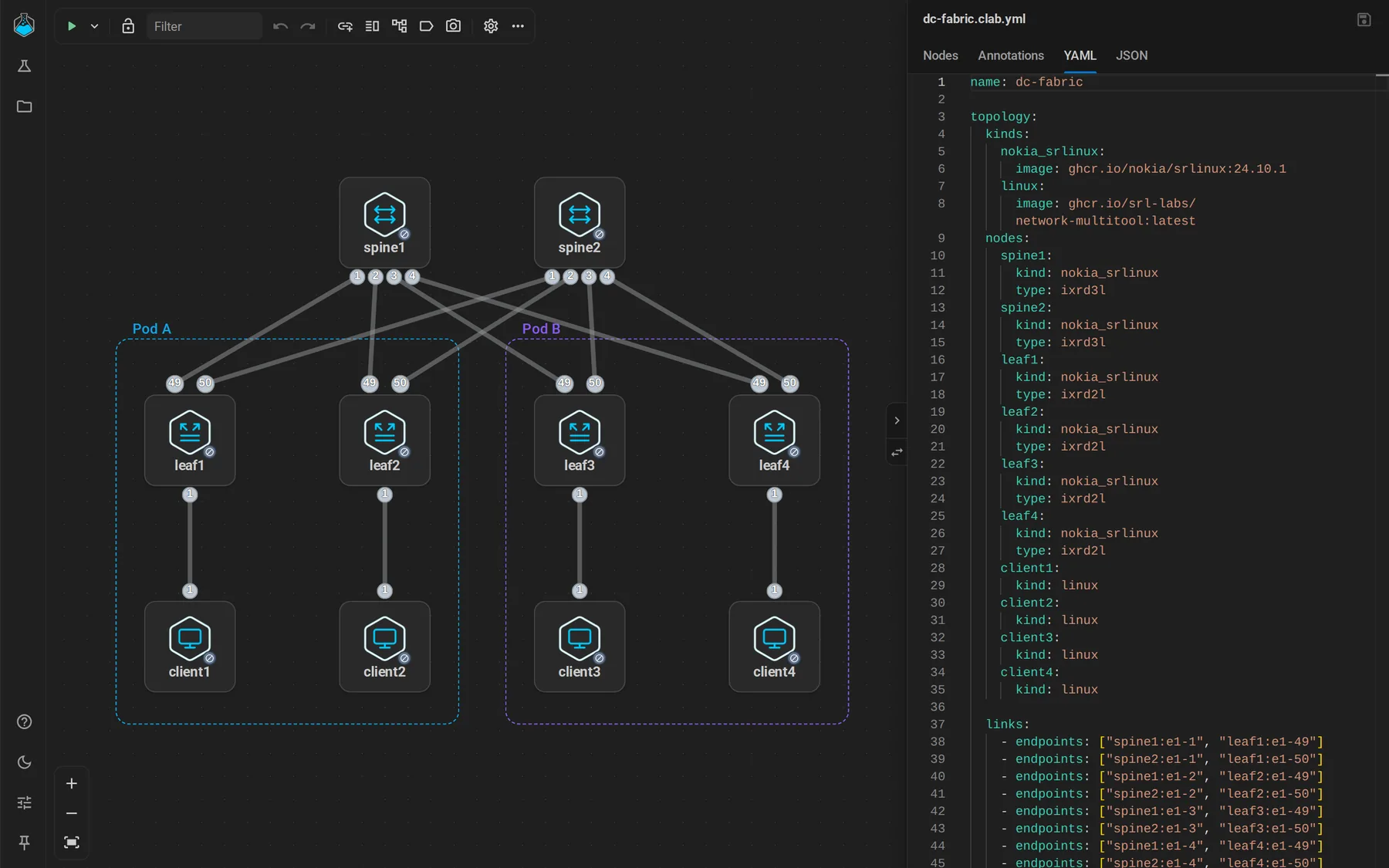
YAML is also a quick way to change many nodes at once.
Add networks
The Palette also has Networks: Host, Mgmt Net, Macvlan, VXLAN, VXLAN Stitch, Dummy, Bridge, and OVS Bridge. Drag one in and connect nodes to it like to any other node.
Learn the format
The containerlab manual covers the file in depth: topology syntax, node properties, kinds, and networking.